
Scripture audio studio
Solutions
The same guides that live inside the studio — open, for everyone.
Everything from a bare passage to a finished, mastered chapter: what the studio does, what to prepare, the two roads in (from text, or from your own recording), how to direct the performance by hand, the music and effects, and how to fix one line without redoing the chapter.
Watch the walkthrough
What the studio makes
This is not a text-to-speech reader. It produces a radio drama: every character cast in their own voice, every line directed for emotion and timing, a score written for the scene, sound effects placed on the exact word, then mixed and mastered.
A project is a book in one language. Inside it you work chapter by chapter (or verse by verse, if you chose that when creating the project). Each unit walks the same five steps: Voice → Music → Effects → Review → Final review, and ends in an export you can publish.
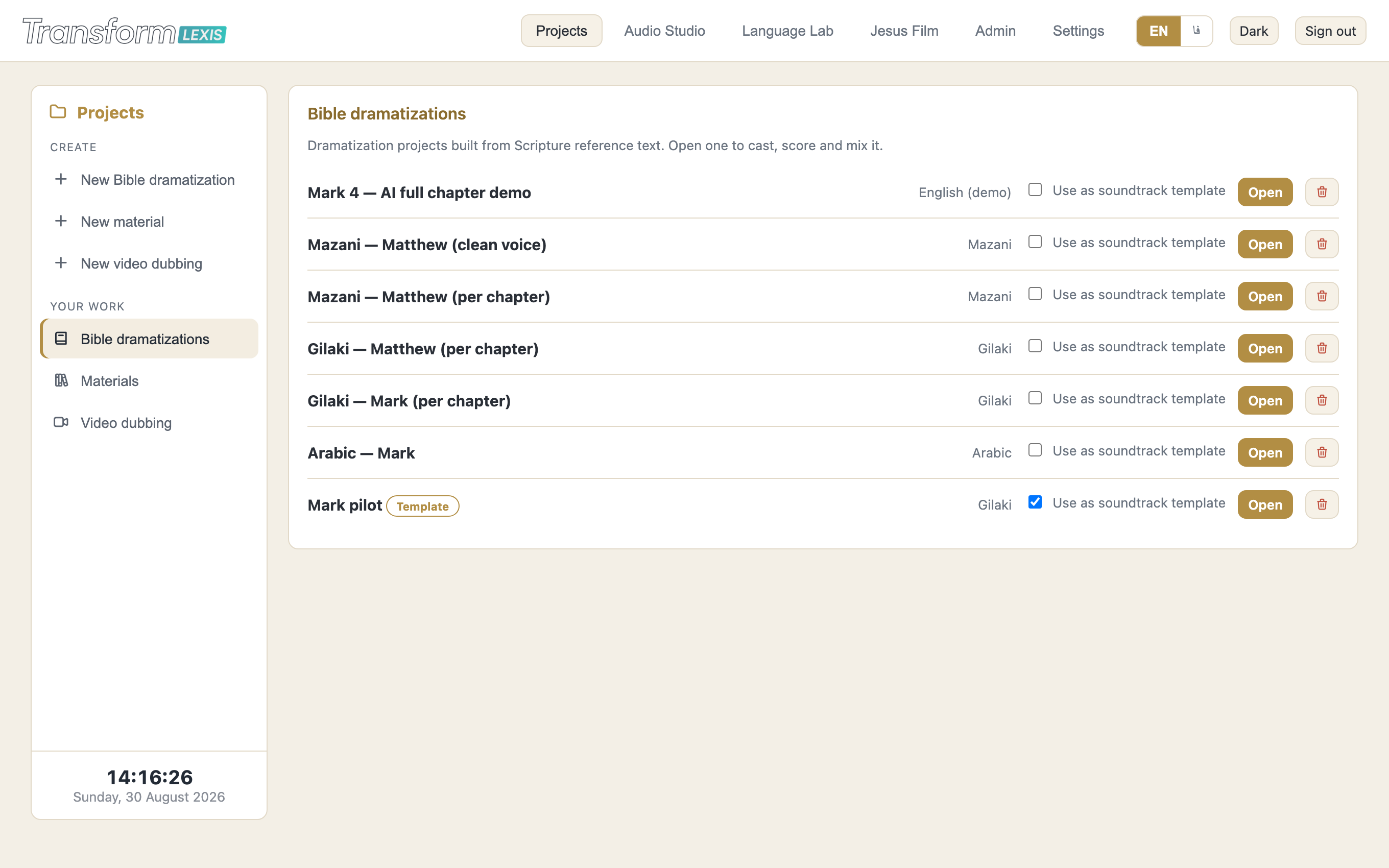
Open a project and you get the book list, the chapters, and each unit's state at a glance: whether it has audio yet, and whether it has been mixed and mastered.
Before you start
Three things decide whether the result is good.
- A reference text. Pick it in "On-screen reference text" at the top of the project. This is the text the AI reads to cast characters, direct the performance and place effects. For an ethnic language it MUST be that language's own text (from the Language Lab), never English — whatever is set here is what gets spoken.
- The cast. Characters are cast per project and remembered across chapters, so Jesus keeps one voice through a whole book. You can audition every voice before you commit.
- Pronunciation rules. Names and words the engine mispronounces are fixed once, in the project's pronunciation list or the language's lexicon, and then stay fixed for every chapter. This changes only the sound, never the written text.
Cost and time, honestly: a chapter is a few dollars of engine usage and several minutes of processing. Nothing is charged for re-mixing, re-scoring or exporting — those are local.
Road one: from the text
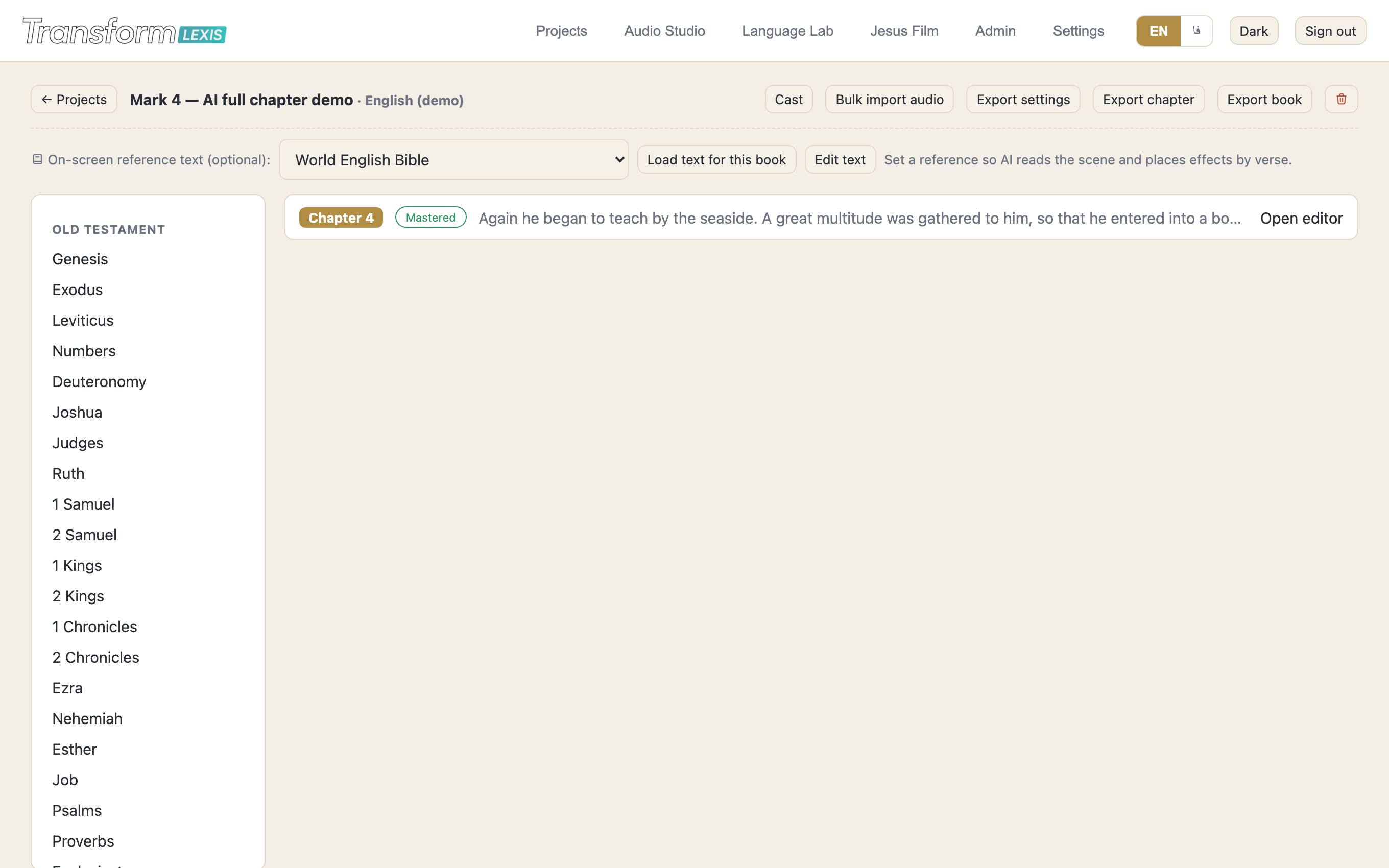
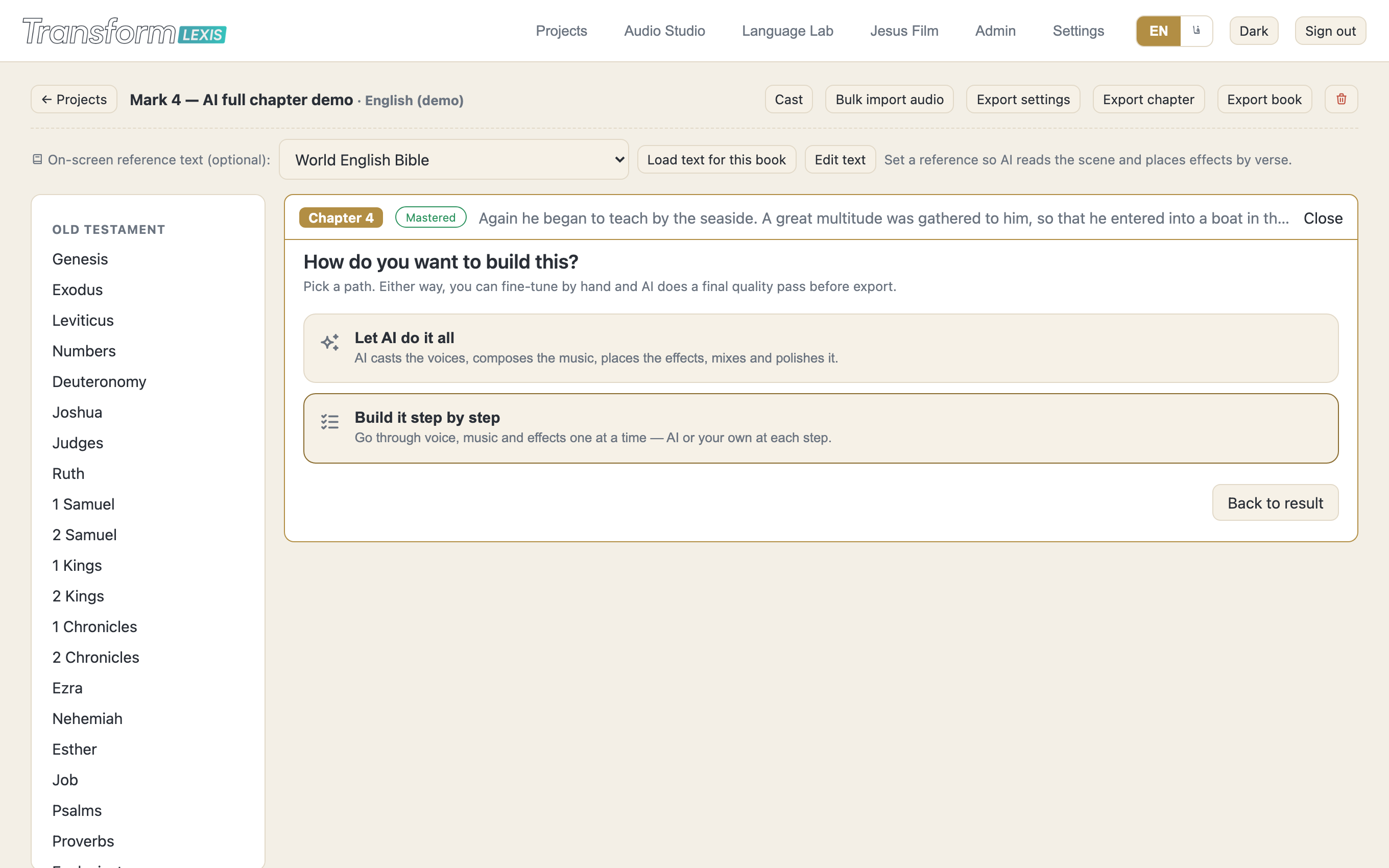
Open a unit and the studio asks one question at a time. First: do you want it done end to end, or step by step? "Let AI do it all" simply pre-answers the next three questions and jumps to Review.
Then, where the voices come from. Generate from the text means the AI reads the passage, splits it into narration and speech, decides who is speaking, directs each line, and speaks it in the cast voices.
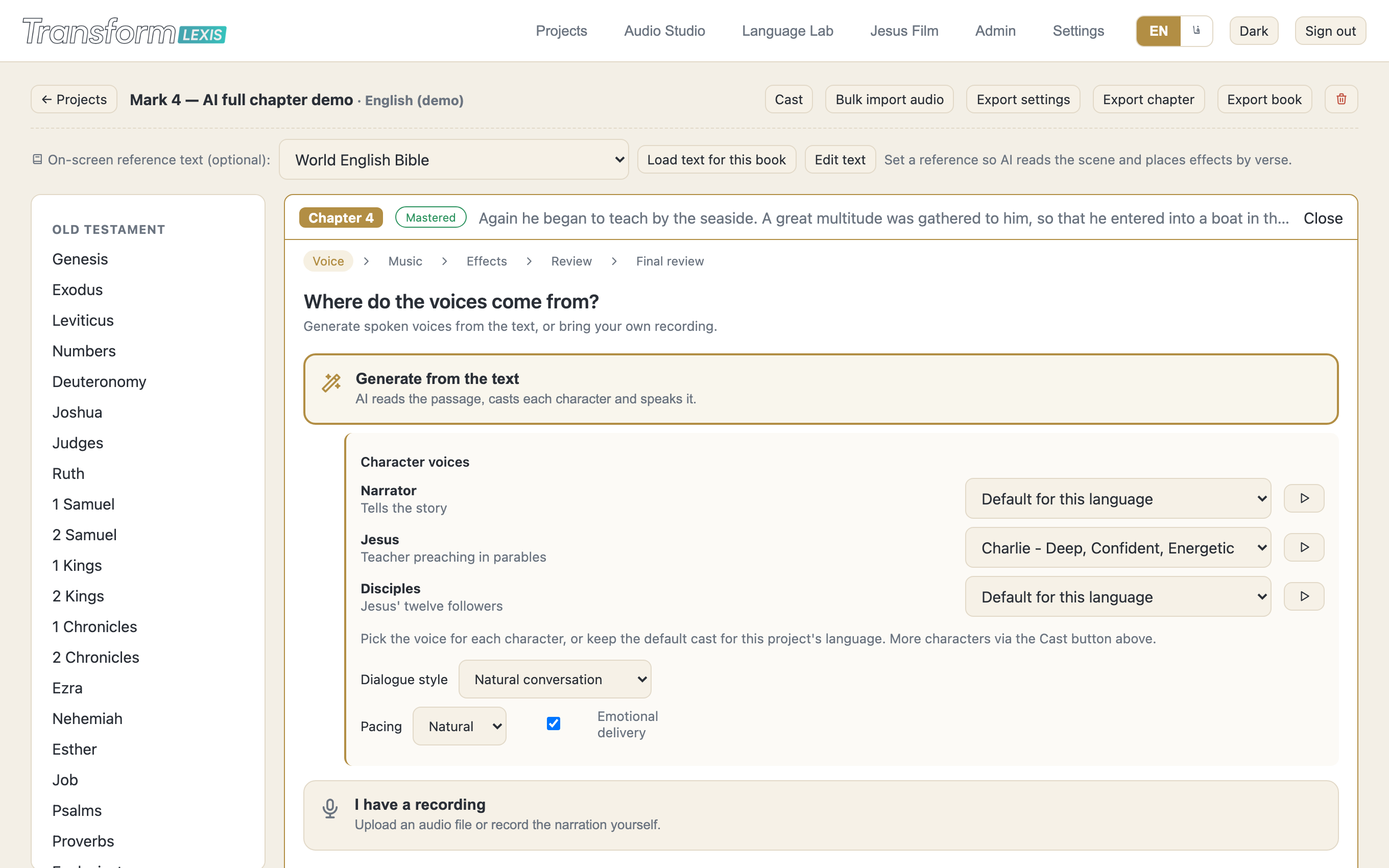
Three controls shape the reading:
- Dialogue style. "Natural" drops the "…said Jesus" attributions and lets the voices carry who is speaking, the way a radio play does. "Narrated" keeps them, read by the narrator.
- Pacing. Tight, natural or relaxed. This scales every pause in the performance, not the speaking speed.
- Emotional delivery. On by default. Switch it off and lines are read plainly.
Under the hood the director's pass assigns each line an emotion, an intensity, and a weight — how hard the line lands — and the pauses follow measured human conversation: about a quarter-second between turns, longer for grief, over a second before a plea, and a beat of silence after a line that lands heavily.
Road two: from your recording
If a person has already read the chapter, choose I have a recording and upload or record it. This is the road for languages no engine can speak, and for keeping a real performance.
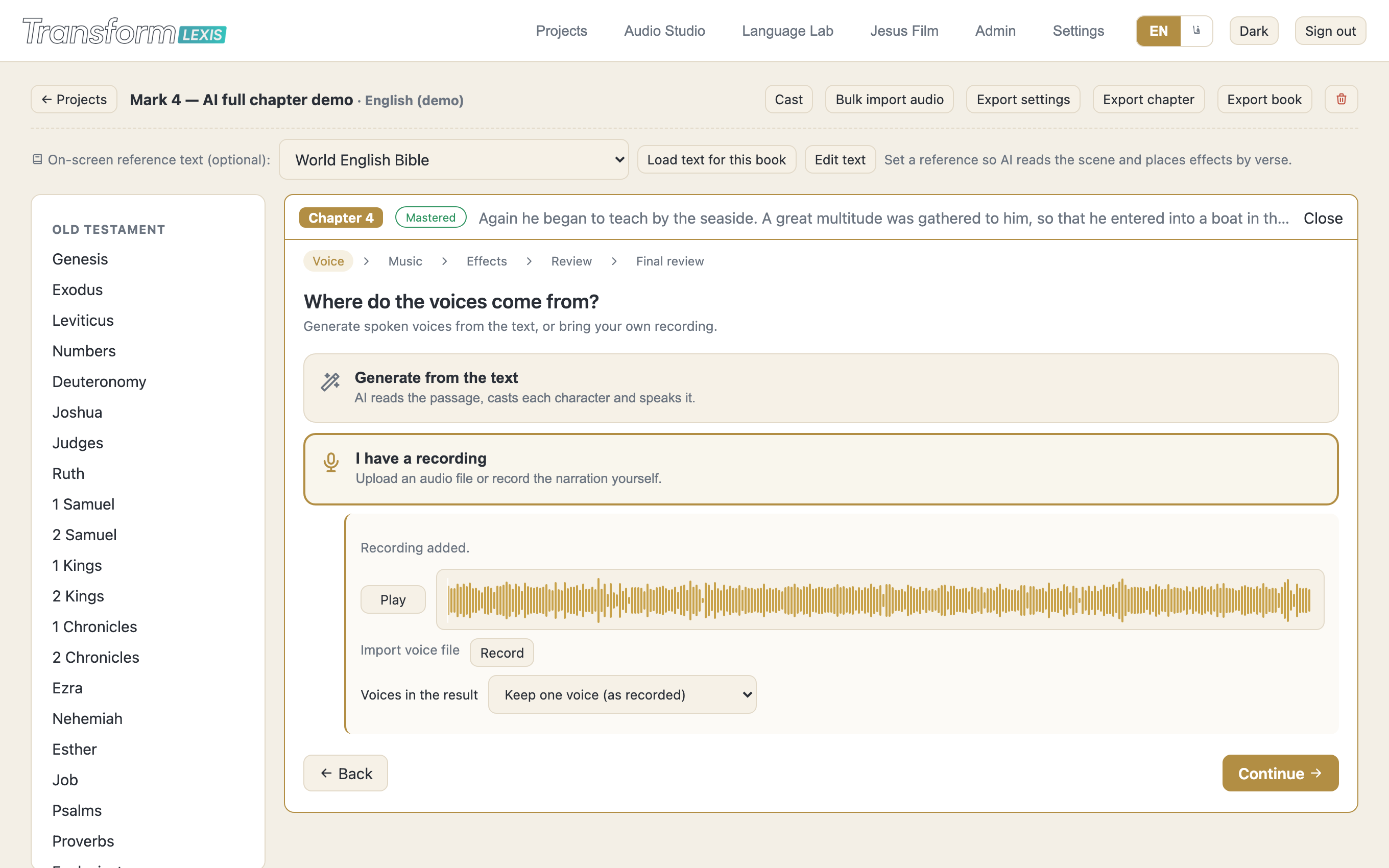
The important control is Voices in the result:
- Keep one voice (as recorded) — your recording is used as it is. The studio still scores it, places effects and mixes.
- Cast the dialogue, keep the narrator — the reader stays the narrator, but every character's spoken lines are re-voiced into that character's own voice.
- Cast everyone — narration too.
Recasting works by listening: the recording is aligned to the text word by word, each spoken line is cut out at its exact moment, and re-voiced in the character's voice while keeping the reader's timing and delivery. So the drama follows the human performance rather than replacing it.
Record voice only — no music, no effects — mono, in a quiet room. Anything already mixed into the recording cannot be separated back out cleanly.
Directing by hand: marks you write in the text
The AI directs every line, but you always get the final say. Open Edit text at the top of the project and write your direction straight into the verse, in square brackets. A mark is an instruction, never a word: it is lifted out before anything is spoken, and it outranks the AI's own choice for that line.
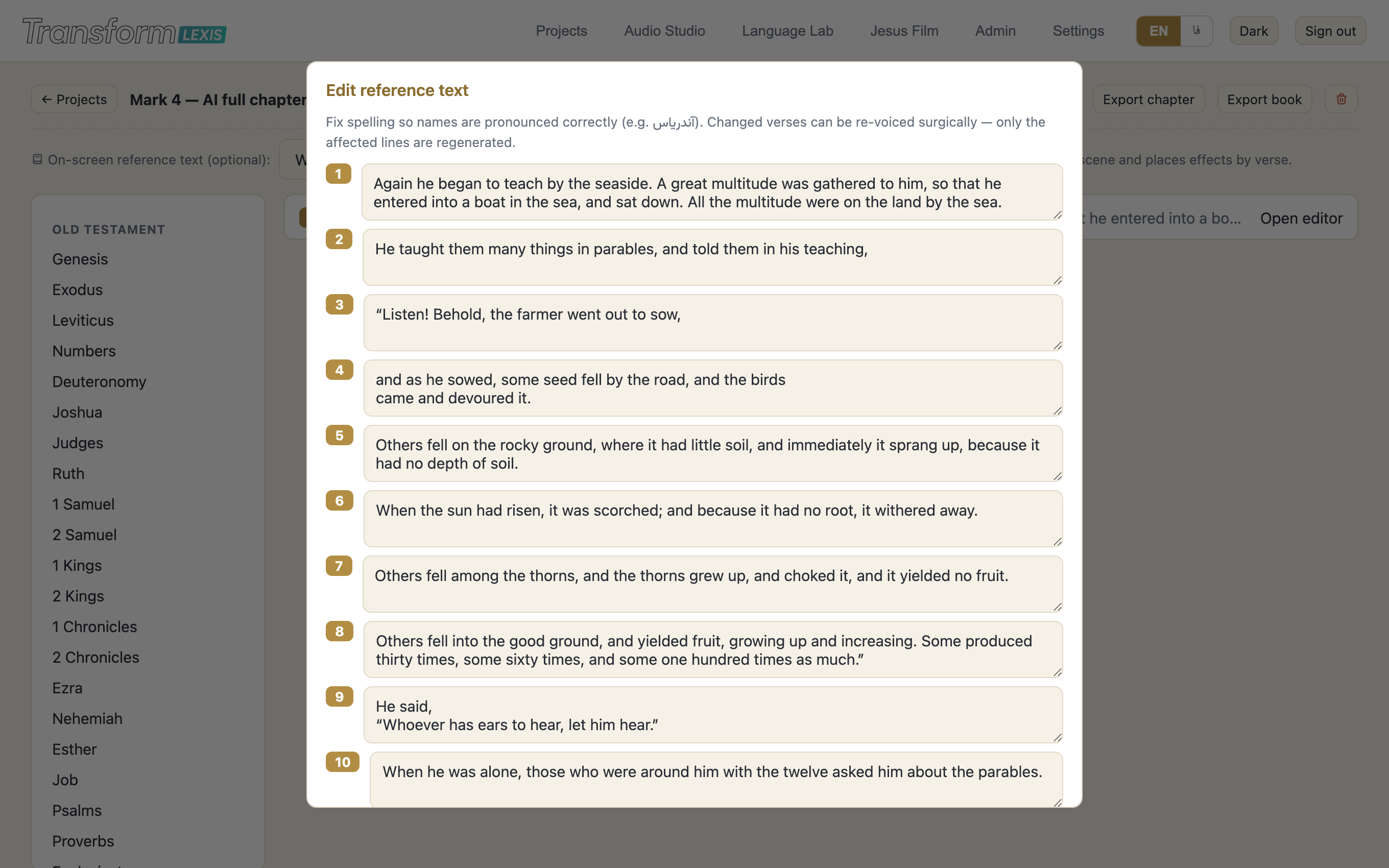
There are two kinds of mark.
Delivery marks — how the line is performed:
[whispers] [shouts] [sighs] [exhales] [crying] [laughs] [chuckles] [gasps] [happy gasp] [clears throat] [pause] [short pause] [long pause] [rushed] [drawn out] [interrupting] [sad] [sorrowful] [happily] [excited] [angry] [curious] [dramatically] [frustrated sigh]
Feeling marks — what the line is, which also sets its pauses:
[neutral] [joy] [excited] [anger] [urgent] [grief] [sad] [fear_panic] [fear_dread] [tender] [awe] [solemn] [curious] [pleading]
Write the mark immediately before the words it governs:
He said to her, [whispers] "Talitha koum."

[grief] "Lord, if you had been here, my brother would not have died."

[shouts] "Lazarus, come out!"
A feeling mark changes the silence around the line, not just its tone: a neutral line gets about a quarter-second before it, [grief] about seven tenths, [pleading] more than a second. That is where drama actually lives.
Practical notes. Use at most two delivery marks on a line. Use them sparingly — one sigh in a chapter moves people, ten are noise. Anything in brackets that is not on these lists is simply removed, never read aloud, so a stray note cannot end up in the audio. Marks work with AI emotion switched off too, and they steer trained native voices as well, which have no notion of audio tags: a whispered mark makes a native voice reach for its whispered reference.
Hear what a direction mark does
Six lines from two readers, each heard twice. The first reading is the line as written. The second has one mark added by hand. The mark itself is never spoken; it only tells the voice how to read.
Taking the child by the hand, he said to her,
What the translator writes
[whispers] “Talitha cumi! Girl, I tell you, get up!”
As written
With the mark
Listen for: the line drops about 5 dB and the pitch almost stops moving. A flat, confidential murmur over the child rather than an instruction.
He taught, saying to them,
What the translator writes
[shouts] “Isn’t it written, ‘My house will be called a house of prayer for all the nations?’ But you have made it a den of robbers!”
As written
With the mark
Listen for: the voice lifts and opens out, louder with a wider spread between its high and low notes, so the rebuke carries across a courtyard.
But he, turning around and seeing his disciples, rebuked Peter, and said,
What the translator writes
[anger] “Get behind me, Satan! For you have in mind not the things of God, but the things of men.”
A feeling mark also sets the silence around the line: 0.14s before it, against a neutral 0.24s.
As written
With the mark
Listen for: not faster, but slower and louder. The rebuke is given weight and space instead of speed.
At the ninth hour Jesus cried with a loud voice, saying,
What the translator writes
[grief] “My God, my God, why have you forsaken me?”
A feeling mark also sets the silence around the line: 0.70s before it, against a neutral 0.24s.
As written
With the mark
Listen for: the pitch climbs and its range doubles. The voice strains upward under the words rather than sinking under them.
For she said,
What the translator writes
[whispers] “If I just touch his clothes, I will be made well.”
As written
With the mark
Listen for: more than 3 dB quieter and narrower in pitch. She is saying it to herself in a crowd, not to anyone in it.
She left her water pot, went into the city, and said to the people,
What the translator writes
[excited] “Come, see a man who told me everything that I did. Can this be the Christ?”
A feeling mark also sets the silence around the line: 0.17s before it, against a neutral 0.24s.
As written
With the mark
Listen for: the pitch jumps around 50 Hz and the line comes out brighter and louder. The news arrives before the sentence finishes.
Recorded by the studio itself, using the same reader on both sides of each pair so only the direction changes. Each clip is the typical take of four, not the best one.
Music and sound effects
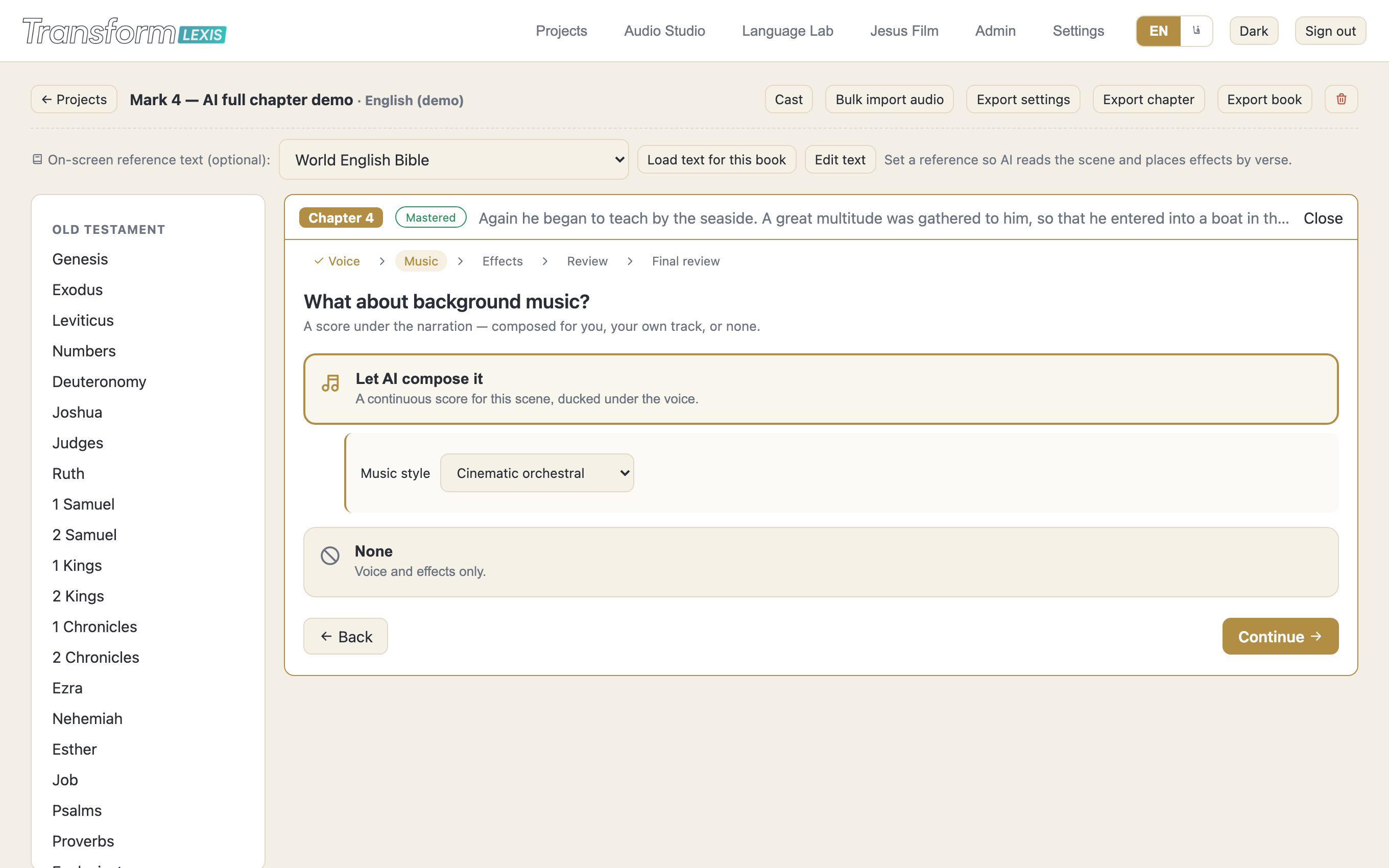
Music next. "Let AI compose it" writes a score for this scene rather than laying one loop over everything: the chapter is split into scenes, each gets its own layered ambience, and two to four musical cues are spotted with a real in point, out point and purpose. Silence is used deliberately — a cue often stops hard just before a line so the line lands in the quiet.
Then effects. Every sound the text actually states — a cry, a gasp, wind, a crowd — becomes an event placed on the exact word it happens on, using the word-level timing of the narration.
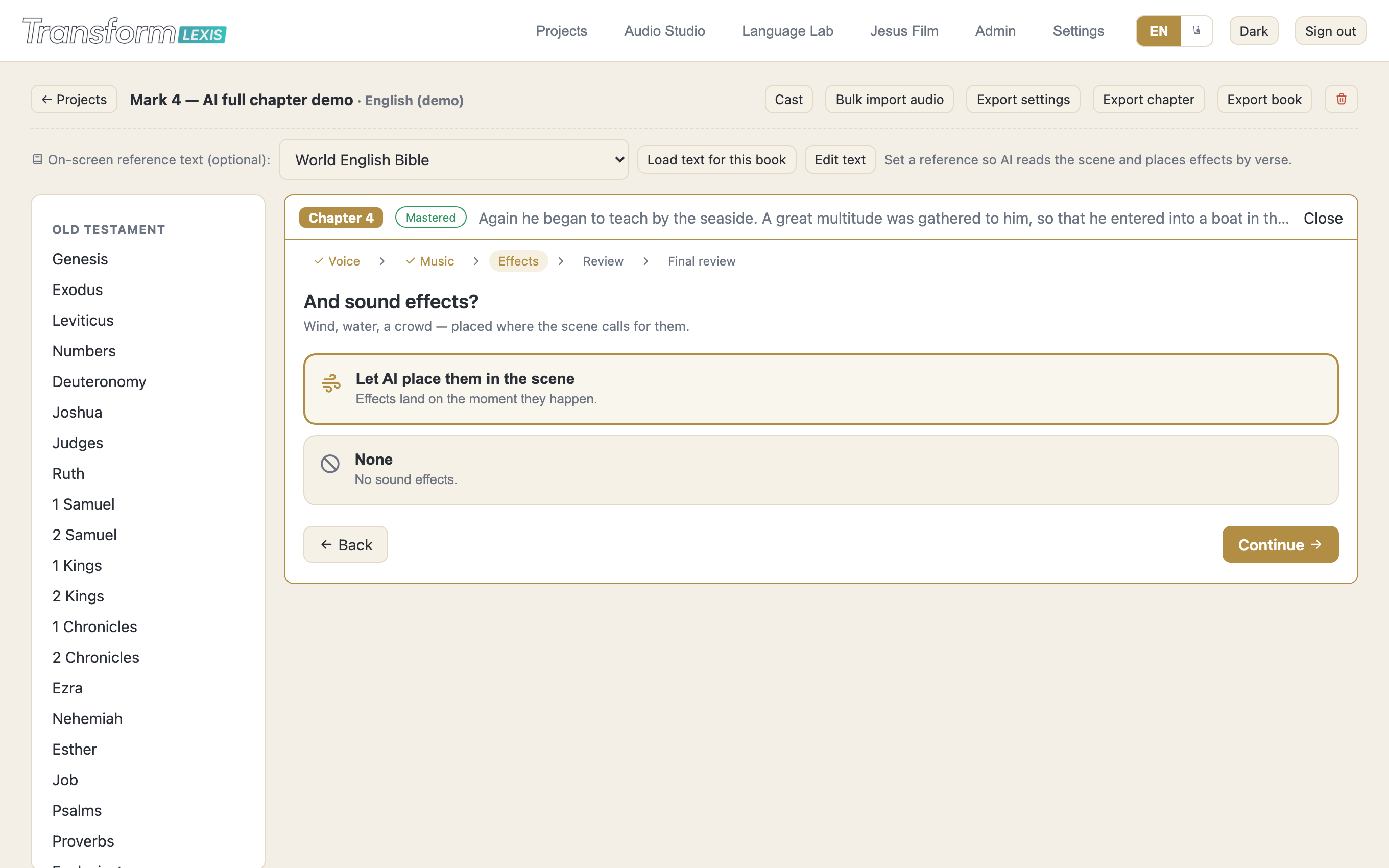
Both can be set to None, and on the recording road you may upload your own music instead, which is trimmed and faded to fit the voice. Music is never time-stretched to follow speech: stretching music audibly ruins it. It sits at its natural tempo and ducks under the voice instead.
Review, mix and export
Review is the last screen before anything is generated. It shows what you chose, lets you cast every character with an audition button, and sets the three levels: voice, music and effects.
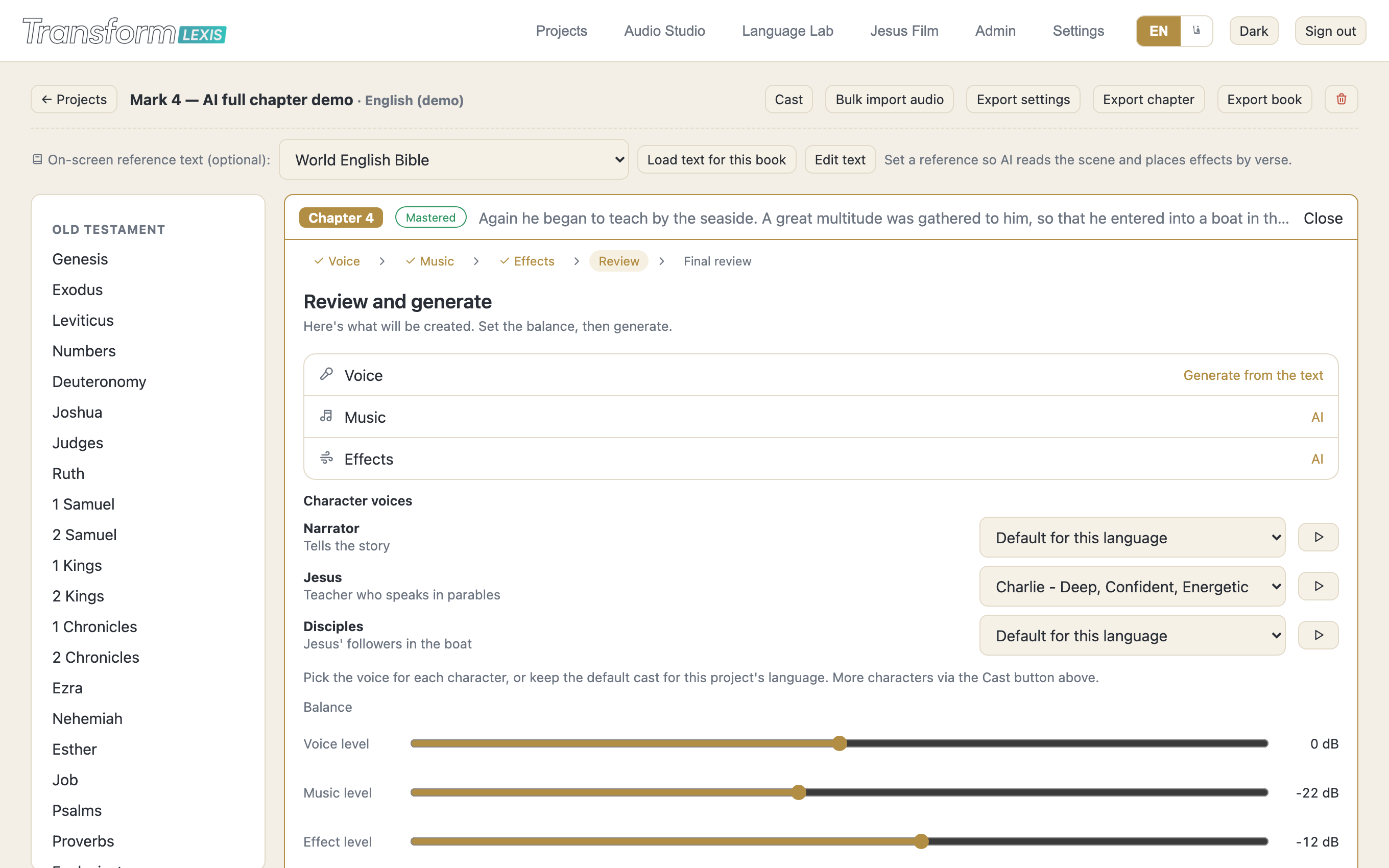
Press Generate and the studio directs, casts, speaks, composes, places, mixes and masters. Then comes Final review: an automatic pass that re-mixes dialogue-first so every bed truly ducks under the voice, measures loudness and peaks, normalises the result, and reports what it found. It fixes balance, ducking and loudness; it flags long gaps rather than hiding them, because a gap is a pacing decision, not a mixing one.
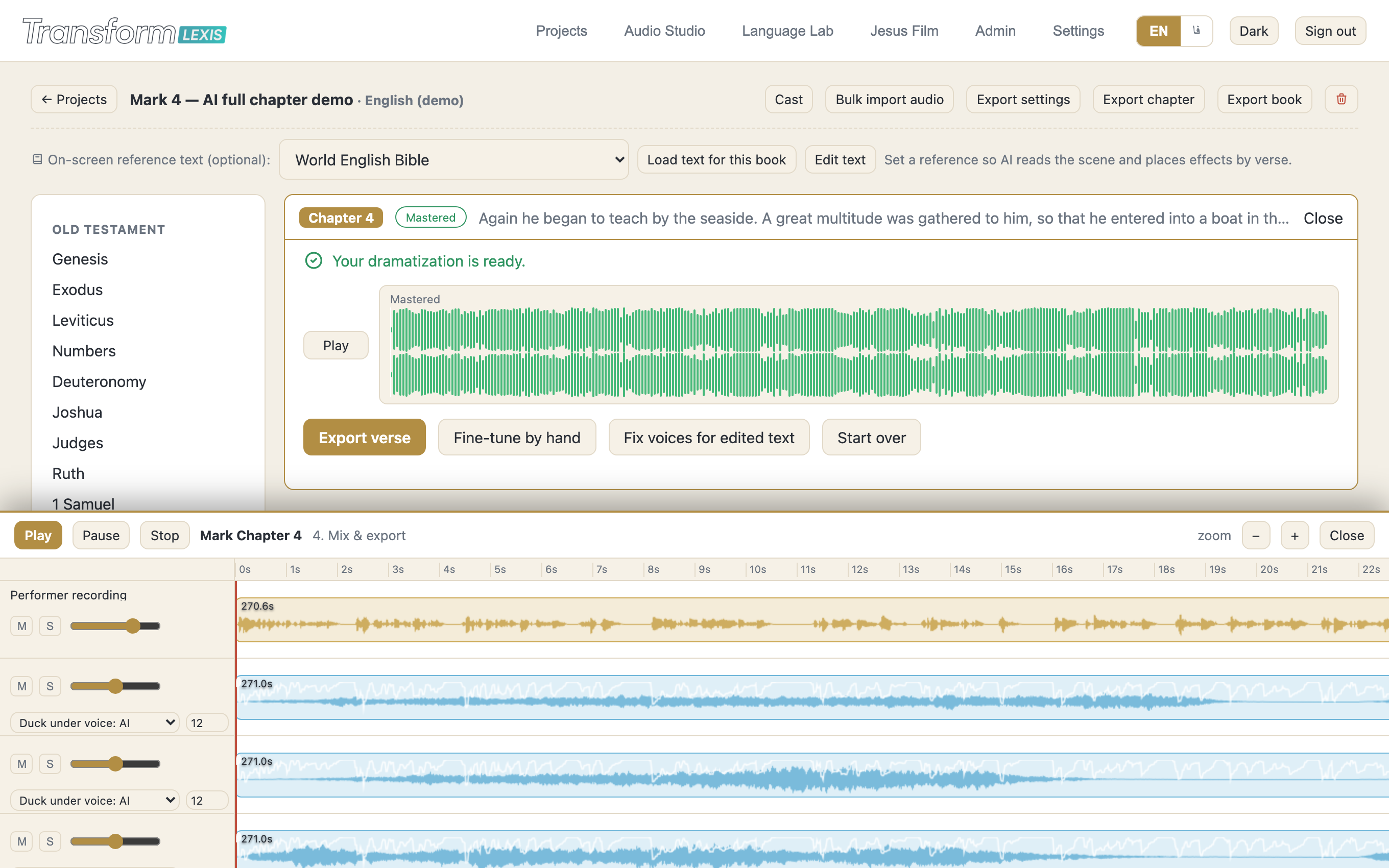
From here you can export the verse, the chapter or the whole book. Export settings (format, bitrate, sample rate, normalisation) live in the project header and are remembered. "Fine-tune by hand" opens the multitrack editor at the bottom: every layer on its own lane, draggable in time, with per-track level, mute, solo, trim, fades and ducking, and a live layered preview.
Fixing one line without redoing the chapter
You will find a wrong name or a misread word after a chapter is finished. You do not have to regenerate it.
- Wrong spelling in the text — fix it in Edit text, then press Fix voices for edited text on the result. Only the lines whose words actually changed are re-voiced; every untouched clip stays bit-for-bit identical, the original pauses are reused, and the score and effects are re-placed on the new timing. Add a direction mark this way too, and only that line is redone.
- Right spelling, wrong pronunciation — use the pronunciation rules instead. The written text stays correct and only the sound changes, for every chapter in the project.
When you save an edit, the studio also notices single-word corrections and offers to apply the same correction across the whole Bible text, with a count of what would change before you agree.
Everything about training a native AI voice for a new language: what to prepare, how to record, what every screen does, and how quality is guarded. Click a section to jump to it.
Watch the walkthrough
What is the Language Lab?
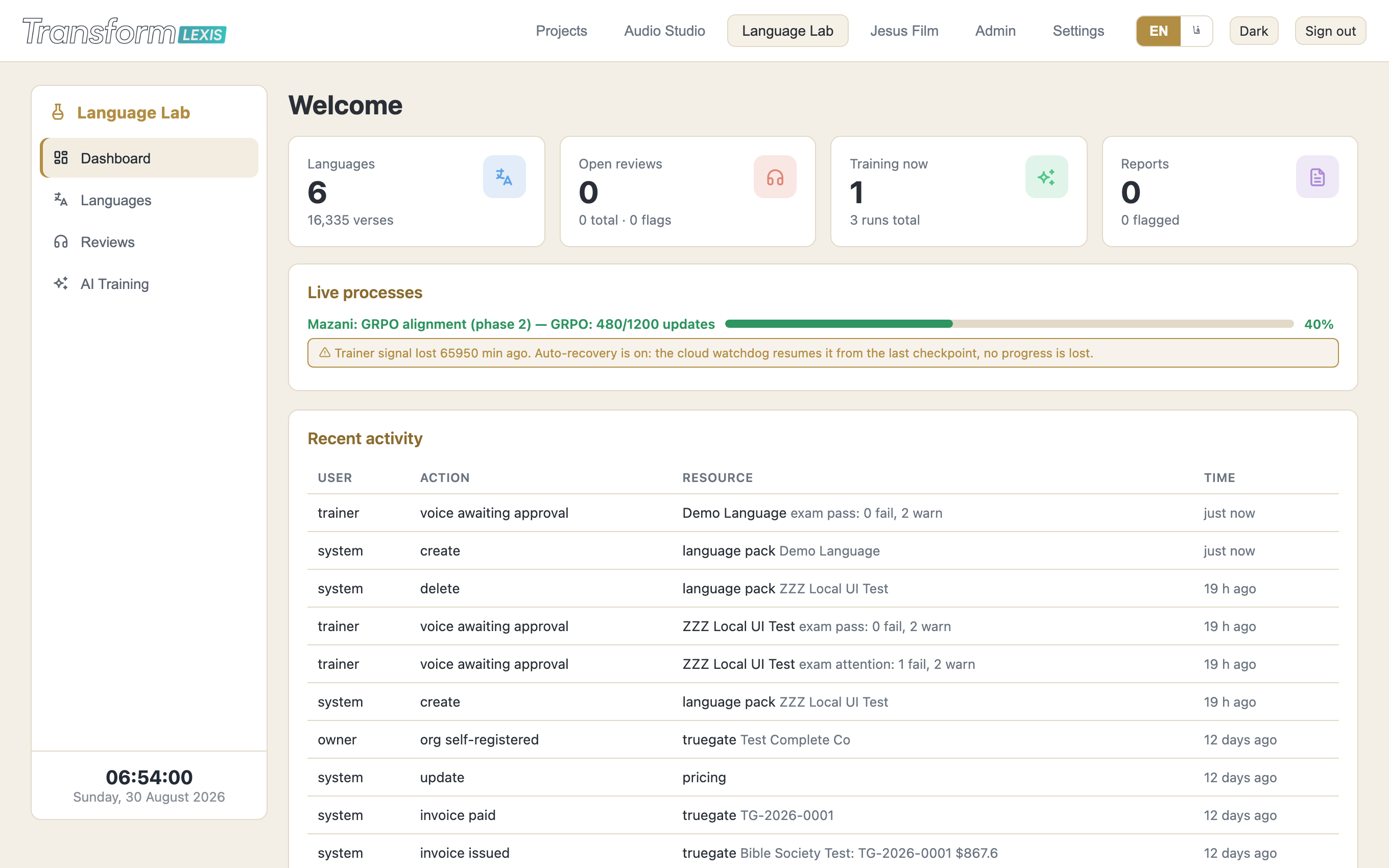
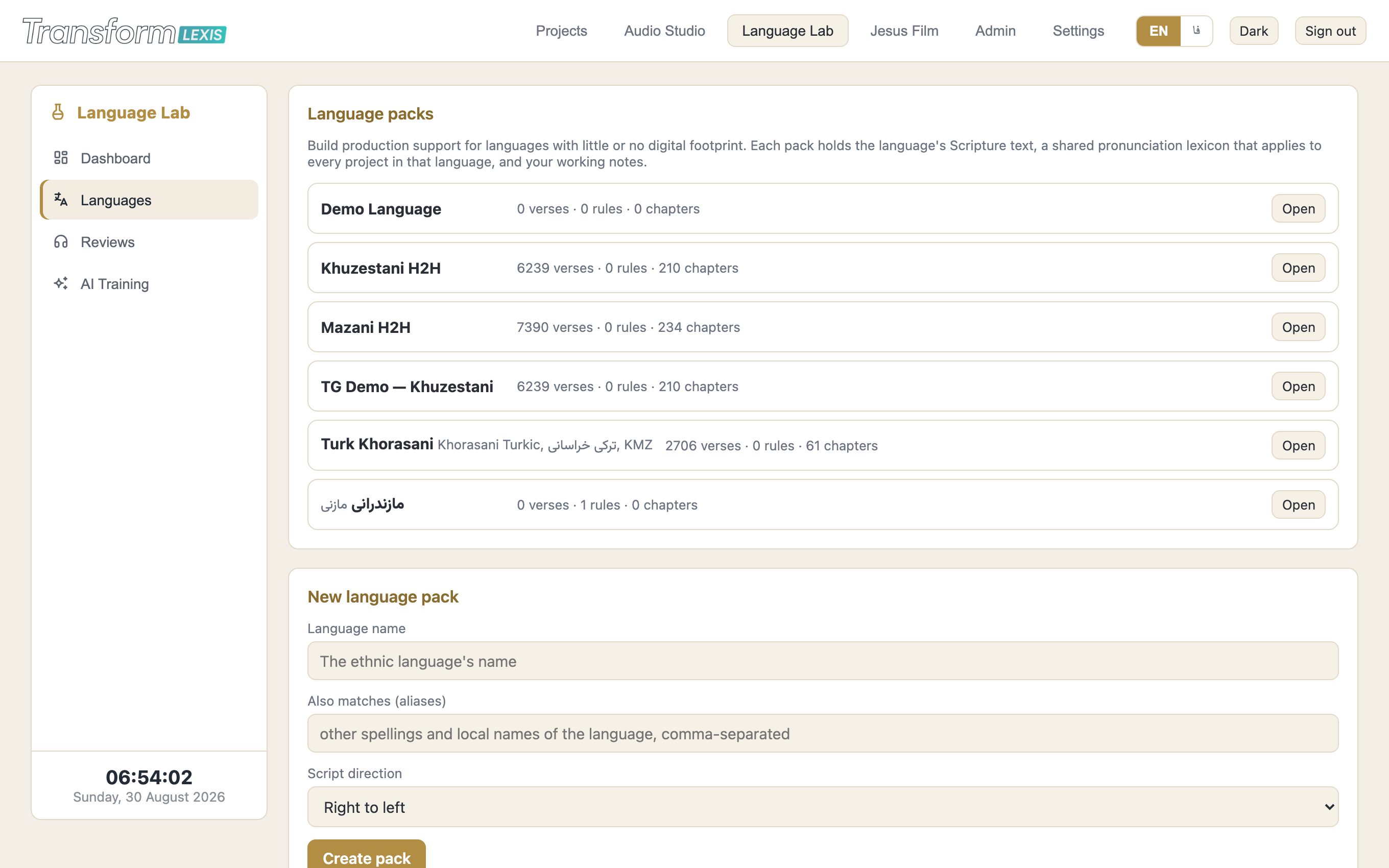
The Language Lab is where a language with little or no digital footprint becomes a language the studio can speak. Each language lives in a language pack: its Bible text, the human chapter recordings, a shared pronunciation lexicon, listener reviews, reports, and — once trained and approved — its own native AI voice.
The side menu has four working areas:
- Dashboard — recent activity across the lab and any process running right now.
- Languages — the language packs. Open one to import text, upload recordings, and walk the voice-training wizard.
- Reviews — native listeners are invited here to judge audio chapter by chapter.
- AI Training — every cloud run with live progress, plus the quality curve of each training.
How the training works — and why it is different
In plain words, this is what happens to your recordings:
- The system listens. Each chapter recording is lined up word-by-word with the imported text (forced alignment), and clean verse clips are cut — keeping the reader's natural pauses.
- A base voice learns the language. An AI voice that already reads Perso-Arabic script is fine-tuned on those clips, on cloud GPUs, until it speaks this language natively — pronunciation, rhythm and all. Letters the base has never seen are grafted in from their nearest relatives before training starts.
- Every checkpoint is examined. Training saves its progress every few thousand steps; each snapshot is measured against your human recordings (see the quality section below) and the best one is chosen — not simply the last.
- Delivery stays human. When the finished voice speaks, it copies its melody and pauses from a real clip of your reader, chosen to fit the moment — calm, lively, solemn, whispering, forceful or tender. The tune is retrieved from a human, never invented by a machine.
One set of recordings, three machines. The same aligned corpus becomes (1) the reading voice, (2) the target timbres for voice conversion — a dubber's take re-spoken in a native voice — and (3) the style library the voice borrows its delivery from.
Why this is different. In our market research (July–August 2026) the large commercial voice services supported a fixed list of languages: none let a customer teach the system a brand-new language from their own recordings. Open research models can be fine-tuned, but that path needs a machine-learning team. The Lab packages the whole journey — align, train, examine, approve, serve — behind buttons a non-technical team can press, and it judges the result against this language's own human recordings, not against English. Our first production voice (Mazandarani) was verified by a native speaker at roughly 95% natural.
Before you start: what you need
Three things are needed — and the third one is the one people underestimate:
- The Bible text of the language. USFM files are best; PDF or pasted chapters also work. The text must be the same translation the reader recorded — the system aligns word by word, so text and audio must match.
- Chapter recordings of that text, read by native speaker(s). One audio file per chapter; the chapter number must be the last number in the filename (for example
Mark-04.mp3); voice only — no music, no effects. Formats: mp3, wav, m4a, aac or ogg. - Consistency. Same reader(s), same microphone, same quiet room, for every chapter. Two or three readers in the corpus is fine — the system separates them — but one main narrator gives the strongest voice.
How many hours of voice?
As a floor, about two hours of clean narration. Our first production voice was trained on roughly five hours (three gospels), and more chapters keep helping. Under an hour, quality drops sharply.
Recorder settings, for the best result
- Mono, not stereo. A voice is one person; stereo adds nothing and is folded down anyway.
- 44.1 or 48 kHz, 16- or 24-bit. WAV or FLAC is ideal; high-bitrate MP3 (192 kbps or more) is acceptable.
- Healthy level: peaks around −6 dB. Never let the meter touch the top (clipping cannot be repaired).
- Nothing "improved": no noise reduction, no echo/reverb, no EQ, no compressor. Raw and clean — the training wants the real voice, and cleanup tools leave scars the exam will find.
- Steady distance of about 15–20 cm from the microphone, with a pop filter if available.
- Quiet room: soft furnishings help; fans, fridges and open windows do not.
Emotion: one extra session unlocks it
The trained voice takes its emotion from real clips of the reader. Chapter narration alone teaches narration only — the voice will read beautifully but cannot truly weep or shout, because the reader never did. To unlock real emotion, record one extra 15–30 minute expressive session: joyful, grieving, pleading, proclaiming, whispering, urgent, tender. Short natural sentences of 5–10 seconds each, in the language — the content does not have to be Scripture. Same reader, same microphone, same room. No retraining is needed afterwards: upload them under Voice → Expression library, press “Send to the voice”, and they join the voice's style library directly.
Step by step: training a new language
The wizard on each language page (Languages → open the language → Voice tab) walks the whole journey. Each step reports its progress on the page and under AI Training; cloud steps keep running if you close the browser.
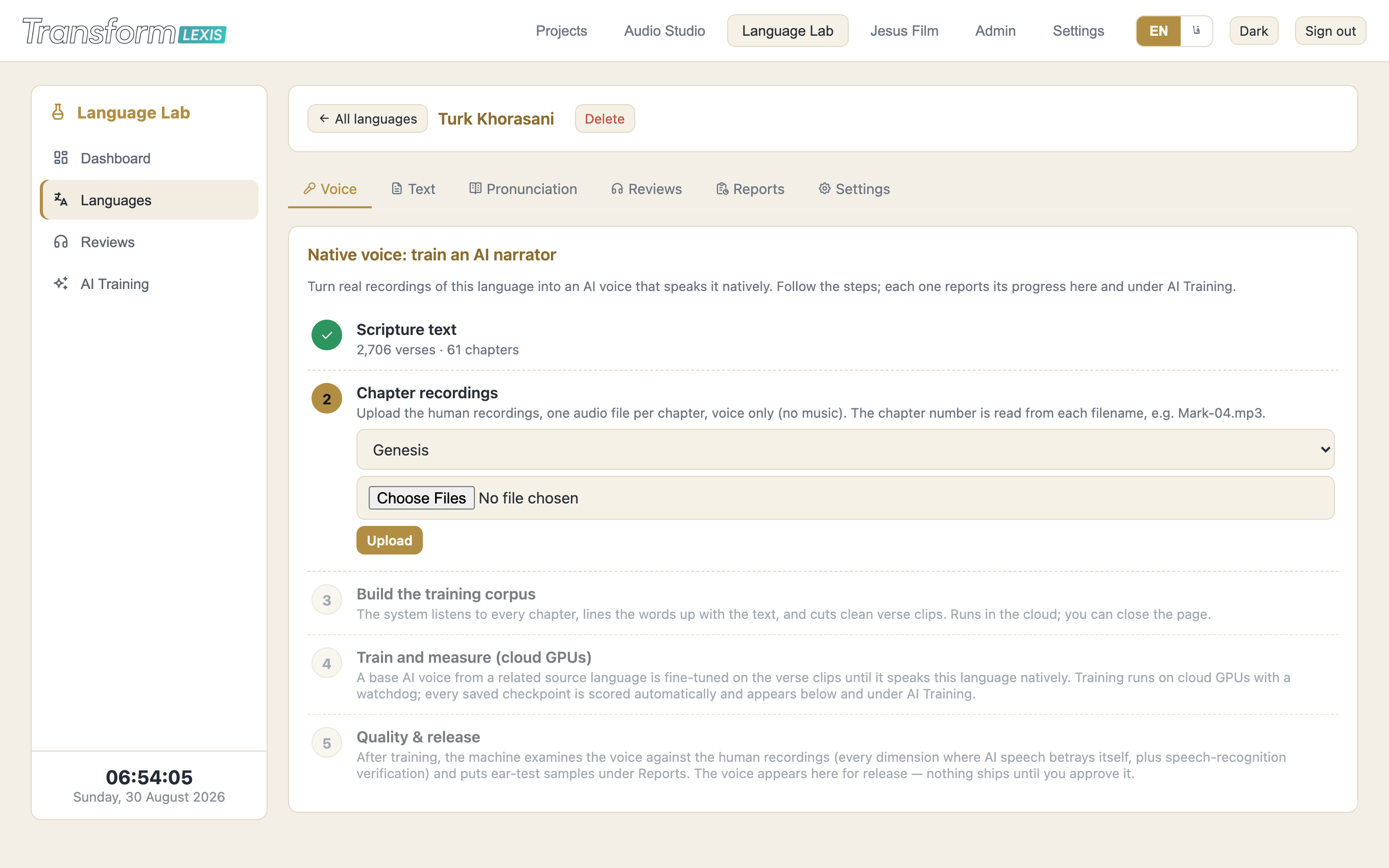
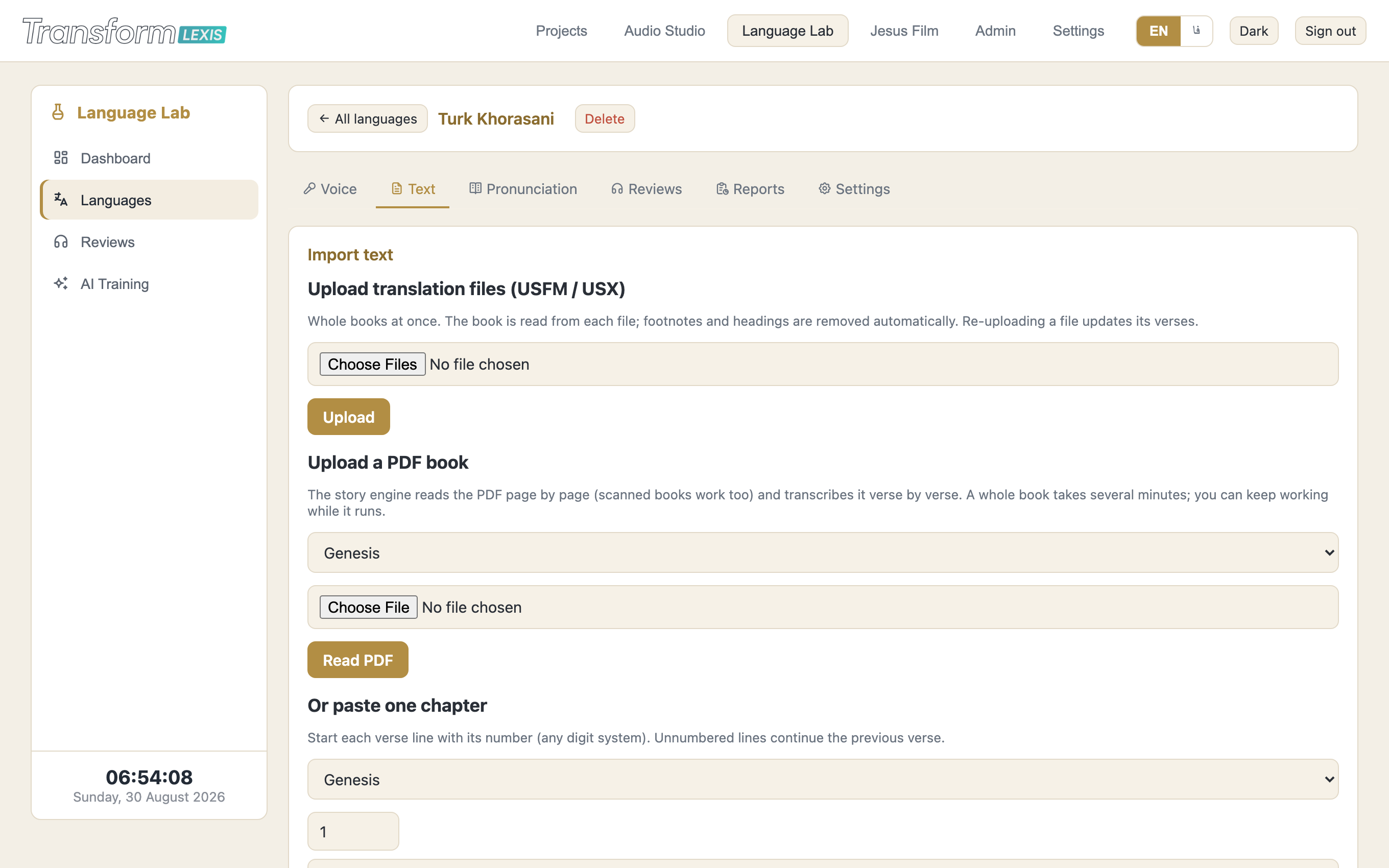
- 1 · Scripture text. Import the language's Bible text first (Text tab: USFM upload, PDF, or paste per chapter).
- 2 · Chapter recordings. Pick the book, choose the audio files, Upload. The list shows what each book already has; a wrong chapter can be deleted and re-uploaded.
- 3 · Build the training corpus. One button. The cloud listens to every chapter in parallel, aligns the words, and cuts verse clips. Minutes per chapter; already-done chapters are skipped, so adding recordings later is cheap.
- 4 · Train the voice. One button. Cloud GPUs fine-tune the base voice — this is the long step (hours). Progress and the per-checkpoint quality curve appear under AI Training; the run resumes itself after any interruption.
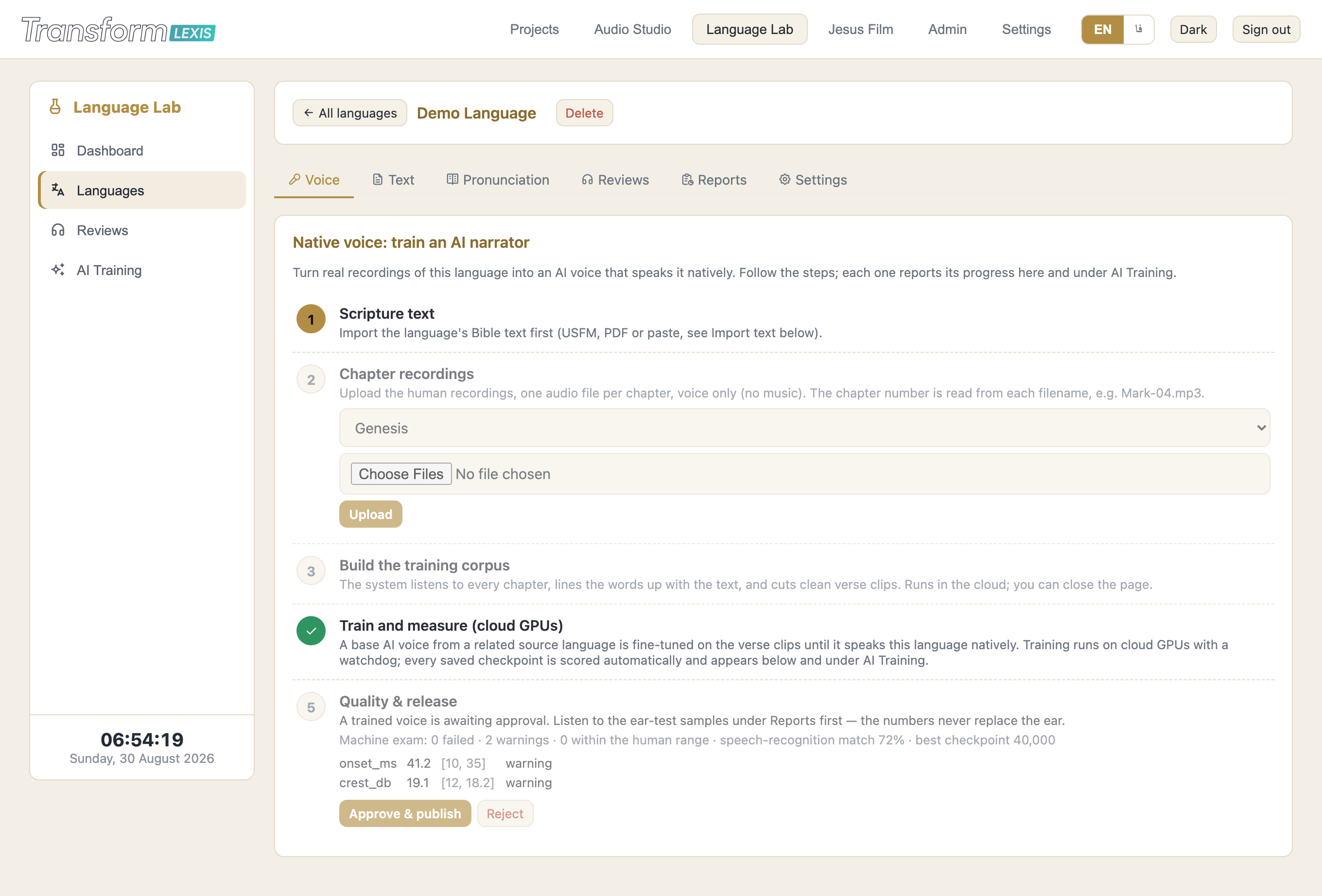
- 5 · Quality & release. After training, the machine exam runs by itself and ear-test samples land under the language's Reports. Listen first. If no dimension fails, Approve & publish puts the voice in every voice picker of the studio; Reject discards the candidate. A voice that is already live stays live until you approve a better one — a retrain can never silently replace it.
This is what step 5 looks like when a trained voice is waiting for the decision:
The screens, one by one
Languages
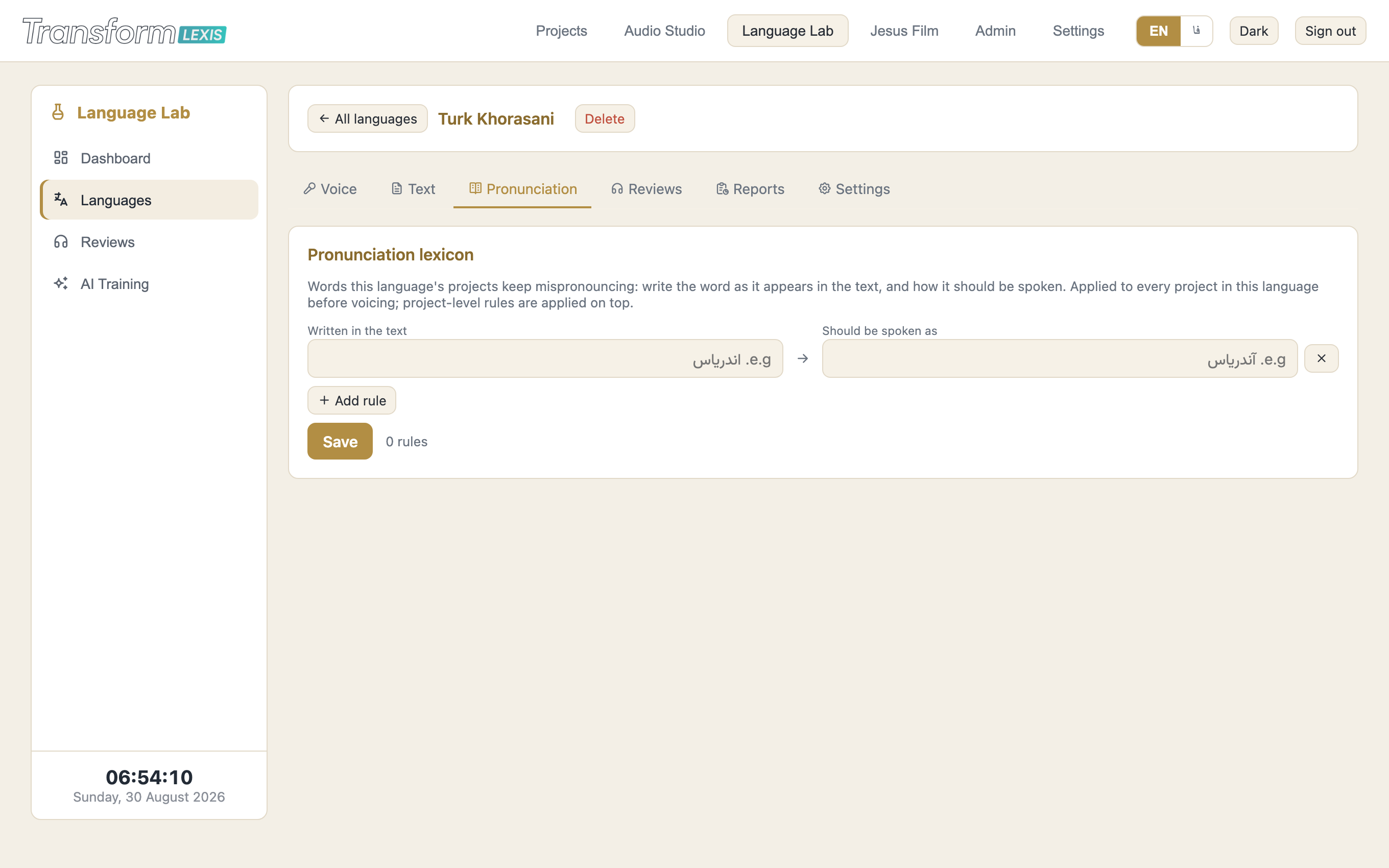
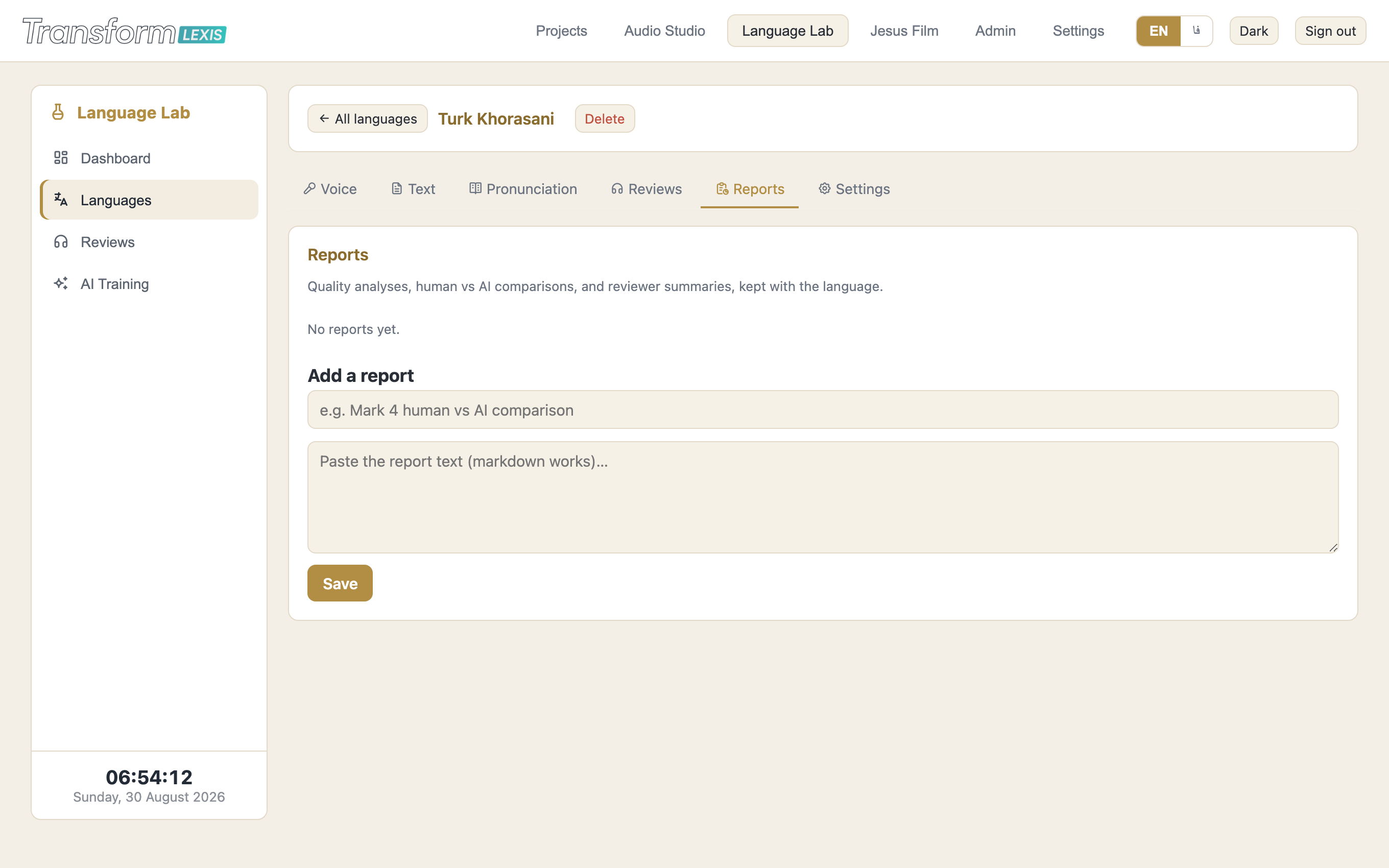
All language packs with their verse counts. Open a pack and its work is organised in tabs: Voice (the training wizard), Text (import USFM/PDF/paste and see chapter coverage), Pronunciation (respelling rules that apply to every project in this language), Reviews (listener panels for this language), Reports (QC analyses and the ear-test samples from training), and Settings (script direction, gateway text, phonology).
Reviews
Native listeners are invited by email and judge chapters blind — approve, flag, comment. Their verdicts land back on the language and are the human half of every quality decision.
AI Training
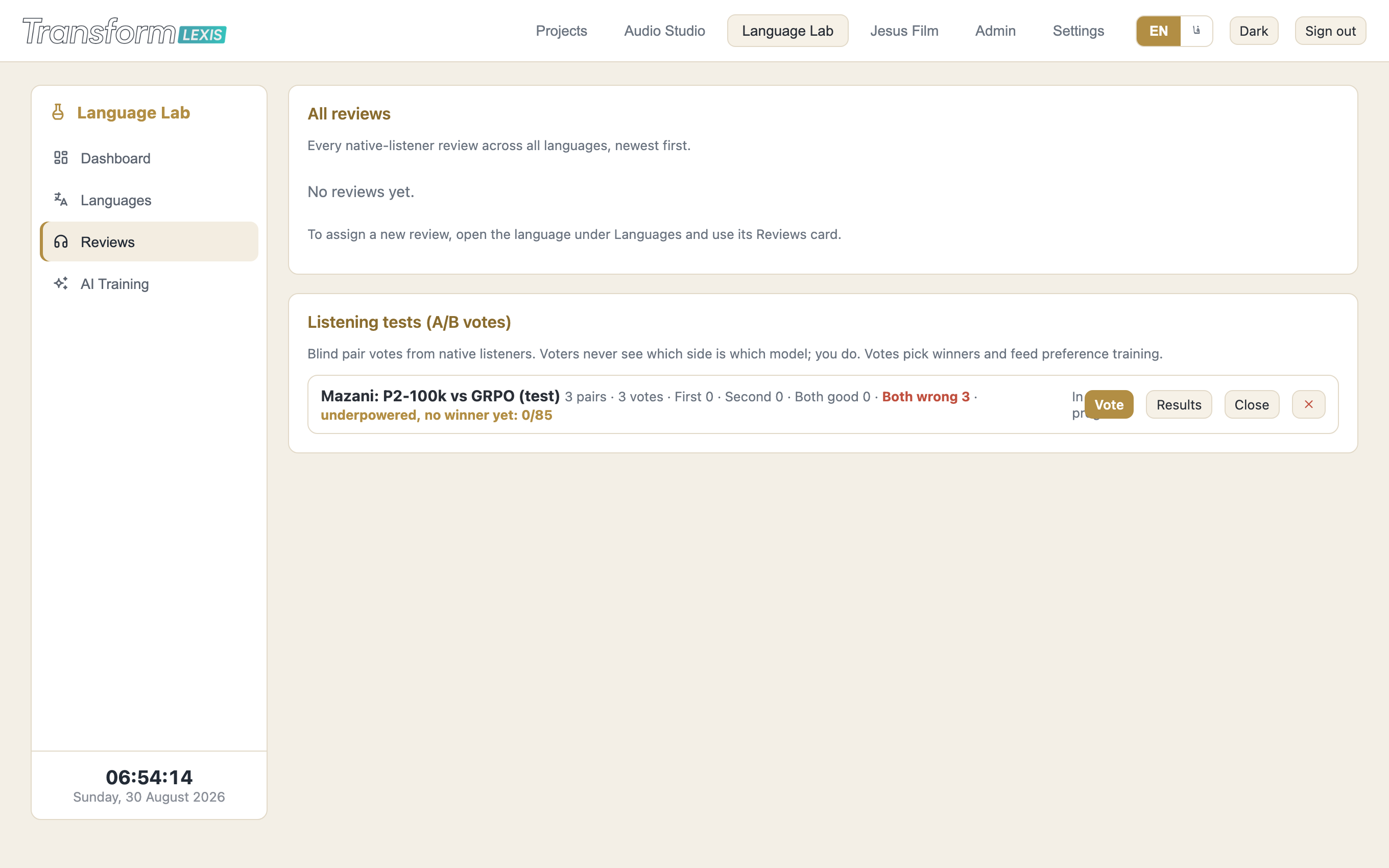
Every cloud run, live: corpus builds, voice trainings, refinements. Each training shows its checkpoint curve — the score is "how far the heard audio was from the asked text", so lower is better — and the best checkpoint is marked. A watchdog restarts interrupted runs from their last checkpoint.
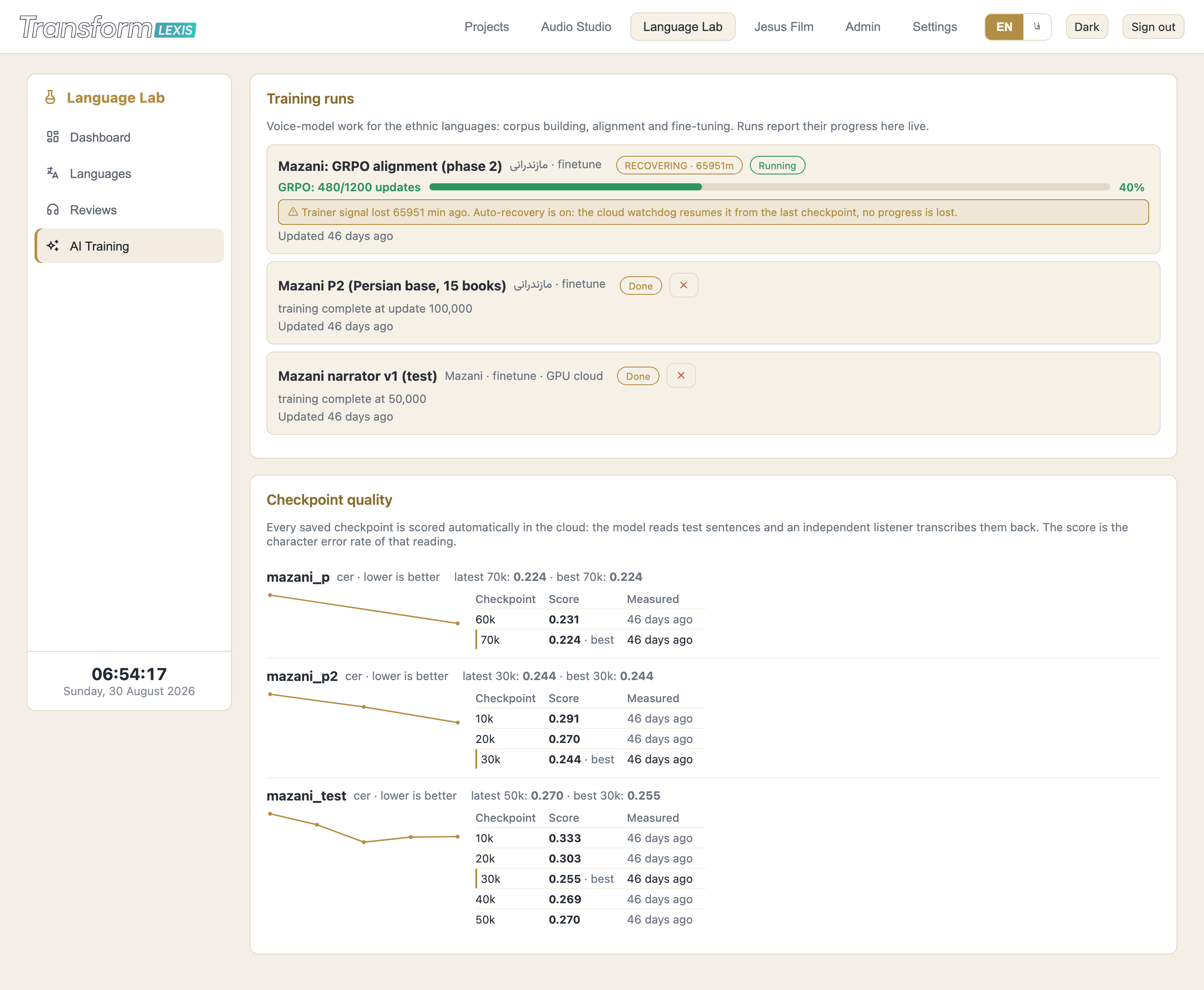
The quality exam and the release gate
Before a human ever listens, the machine has already searched for everything that betrays an artificial voice. For every training checkpoint it synthesizes test verses — preferring verses the training never saw — and measures each dimension where AI speech gives itself away: how far the sound reaches into the highs, tonal balance, harmonic clarity, pitch jitter and pitch range, frame-to-frame flicker, amplitude shiver, the silence floor between phrases, hiss on the voice, sibilance, how word onsets rise, dynamics, clipping.
The judge is not an abstract standard: every dimension is compared against the range of your own human recordings. If the human narrator's recordings breathe at a certain level, the AI must land in that neighbourhood. On top of that, a speech-recognition pass transcribes the AI audio and compares it with the text it was asked to read.
- A failing dimension blocks release — the Approve button will not work, on the screen or on the server.
- Warnings do not block, but they are listed so you know exactly where the voice sits at the edge of the human range.
- The numbers never replace the ear: ear-test samples are placed under Reports for every training, and a human presses Approve. That is deliberate — nothing ships by itself.
Re-voice a film, an episode or a talk into another language, step by step, with a native reviewer approving the words before a single line is spoken.
Watch the walkthrough
What dubbing does here
This takes an existing video and gives it a new language. The picture is never touched. What changes is the voice: each speaker is separated, transcribed, translated, reviewed by a human, cast in a voice, and re-spoken over the original, which is ducked underneath.
It works for any source and target pair, not only the languages we train. And it is step-gated on purpose: a native reviewer approves the transcript, and then the translation, before anything is voiced. Nothing expensive happens on top of words nobody has checked.
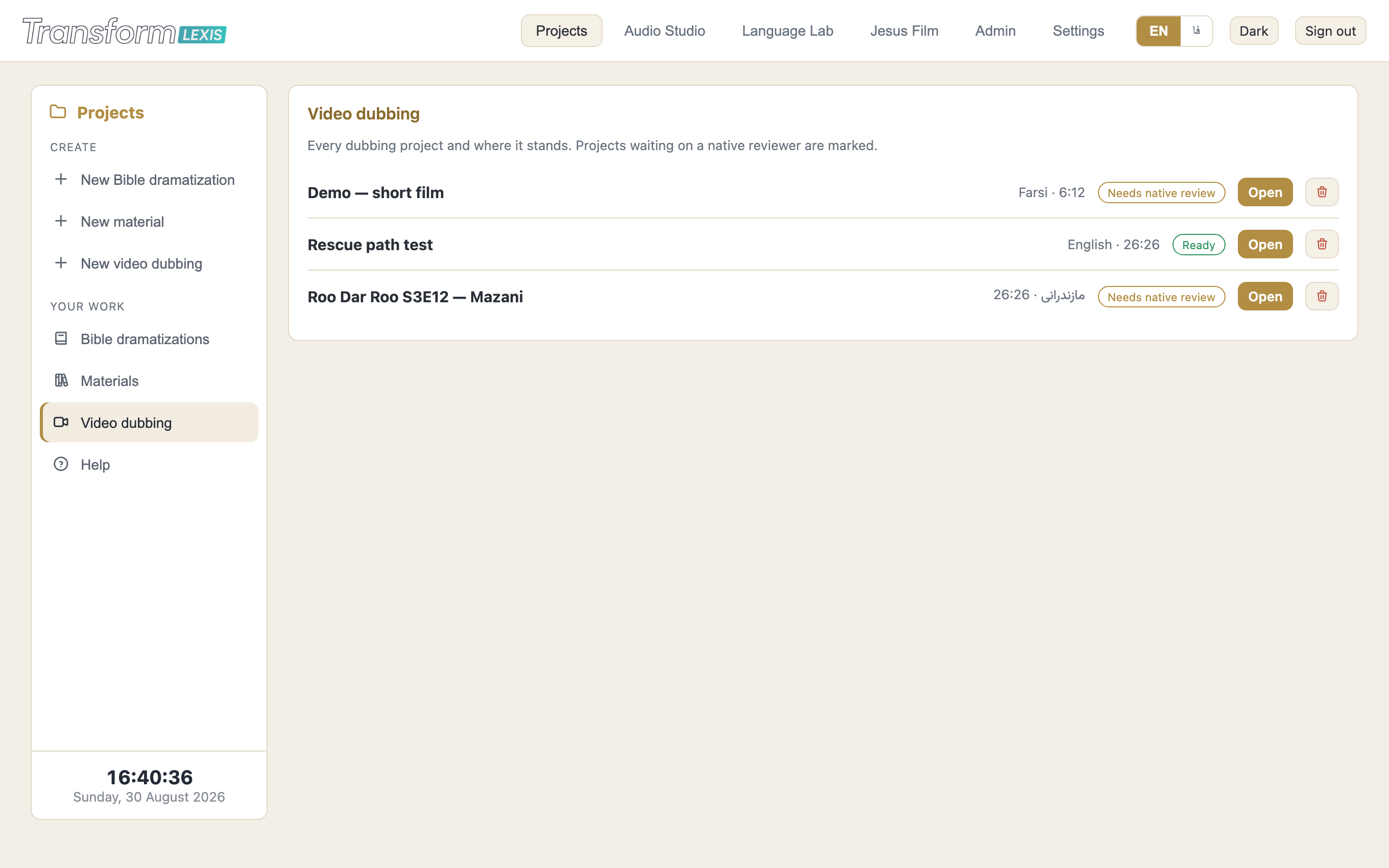
Every project shows where it stands, and the ones waiting on a reviewer are marked, so a team can see at a glance whose turn it is.
Starting a project
New video dubbing asks for four things.
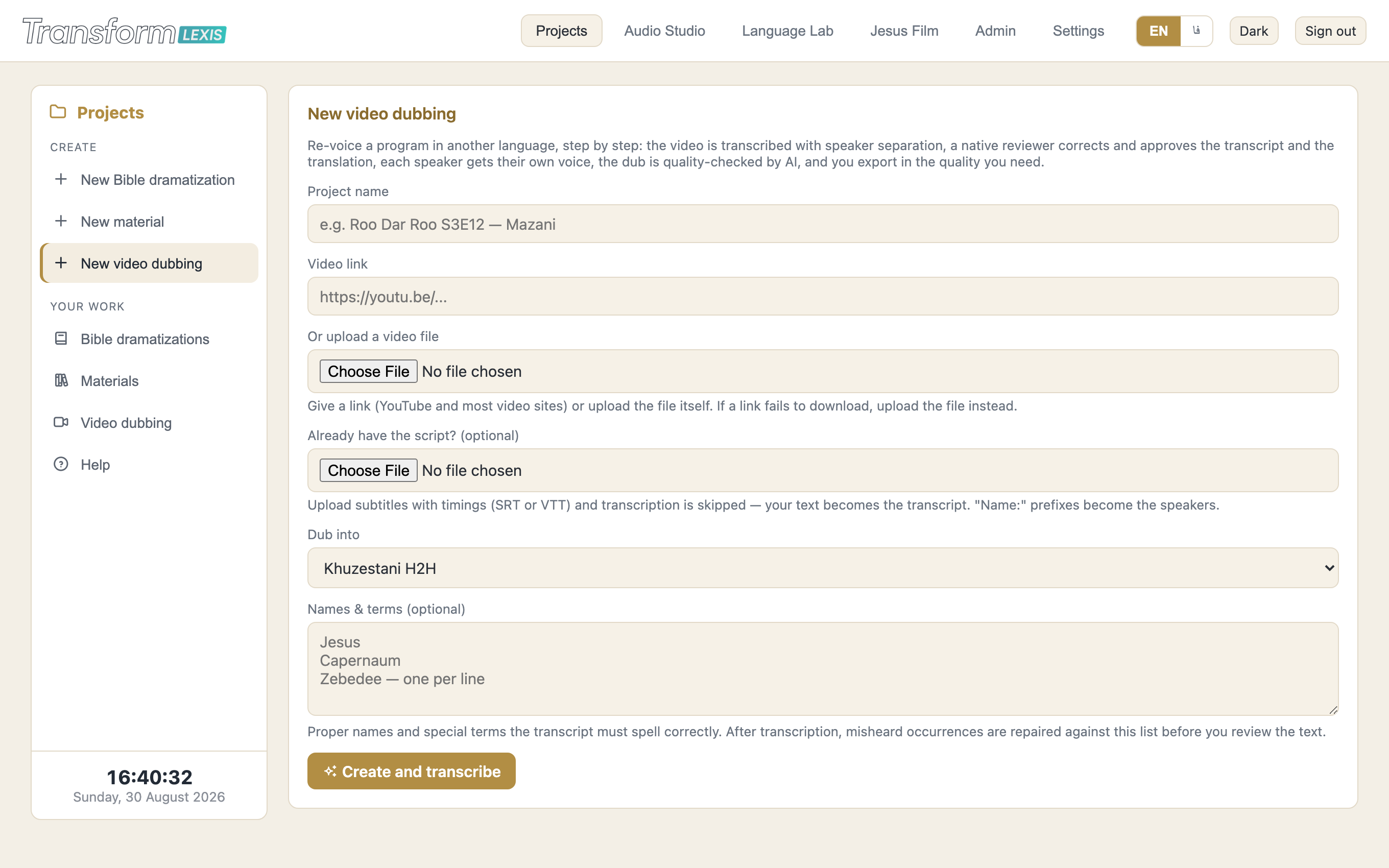
- The video. Paste a link, or upload the file. Uploads are the dependable path — links from public video sites are blocked more often than not, and the error screen will offer you the upload instead. Large files are sent in pieces, so a 400 MB episode arrives in one go with a live percentage.
- A script, if you already have one. Upload SRT or VTT and transcription is skipped entirely: your text becomes the transcript, its timings are kept, and
Name:prefixes become the speakers. This is the road for partners who already caption their own material. - The target language. Anything, including the trained ethnic languages.
- Names and terms (optional, but do it). Proper names and special terms, one per line. After transcription these are repaired against your list before you ever read it, so you are not correcting the same misheard name forty times.
Stage one: the transcript
The video is transcribed with the speakers separated, so each line arrives labelled with who said it and exactly when. Then it stops and waits for you.
This is the first gate. Read the transcript, fix what the machine misheard, and approve. Everything downstream is built on these words, so a misheard line here becomes a wrong translation and then a wrongly spoken line — catching it now costs seconds, catching it later costs a re-dub.
Stage two: the translation, and timing
Translation is duration-aware. Each line carries how many seconds it has to fit in, and the translator is asked to fill that time naturally rather than produce a sentence that is technically correct and physically impossible to say in the gap.
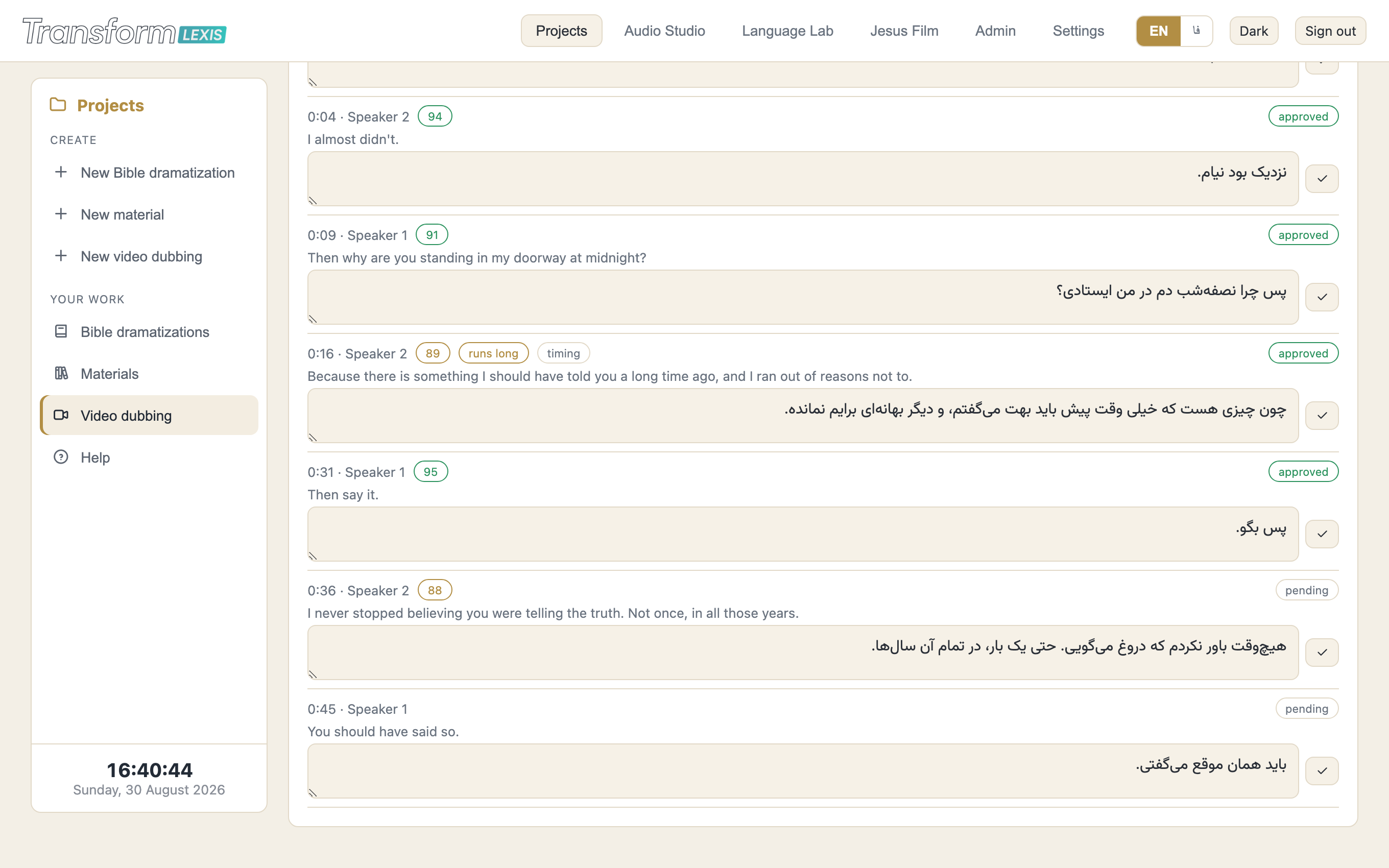
Then the second gate: every line is approved by a human. Edit a line and it is marked corrected; approve the rest one by one or all at once. What the machine originally wrote is kept underneath, which is how the system learns what your reviewers actually change.
Before you dub, press Check timing. Real speech is measured from your chosen cast, every line's spoken length is predicted, and the whole chain is simulated. Lines that will run long are flagged right there in the list, with chips like "runs long". You can ask it to rewrite those lines — same meaning, fewer syllables — which is far cheaper than discovering the problem in the finished audio.
This matters more than it sounds. Farsi runs longer than English; English runs shorter than Farsi. Get it wrong in one direction and the dub trails behind the conversation; wrong in the other and lips move in silence.
Casting the voices
Casting works exactly like casting characters in a dramatization: every speaker gets a voice, and a play button reads that speaker's own first translated line in the candidate voice before you commit.
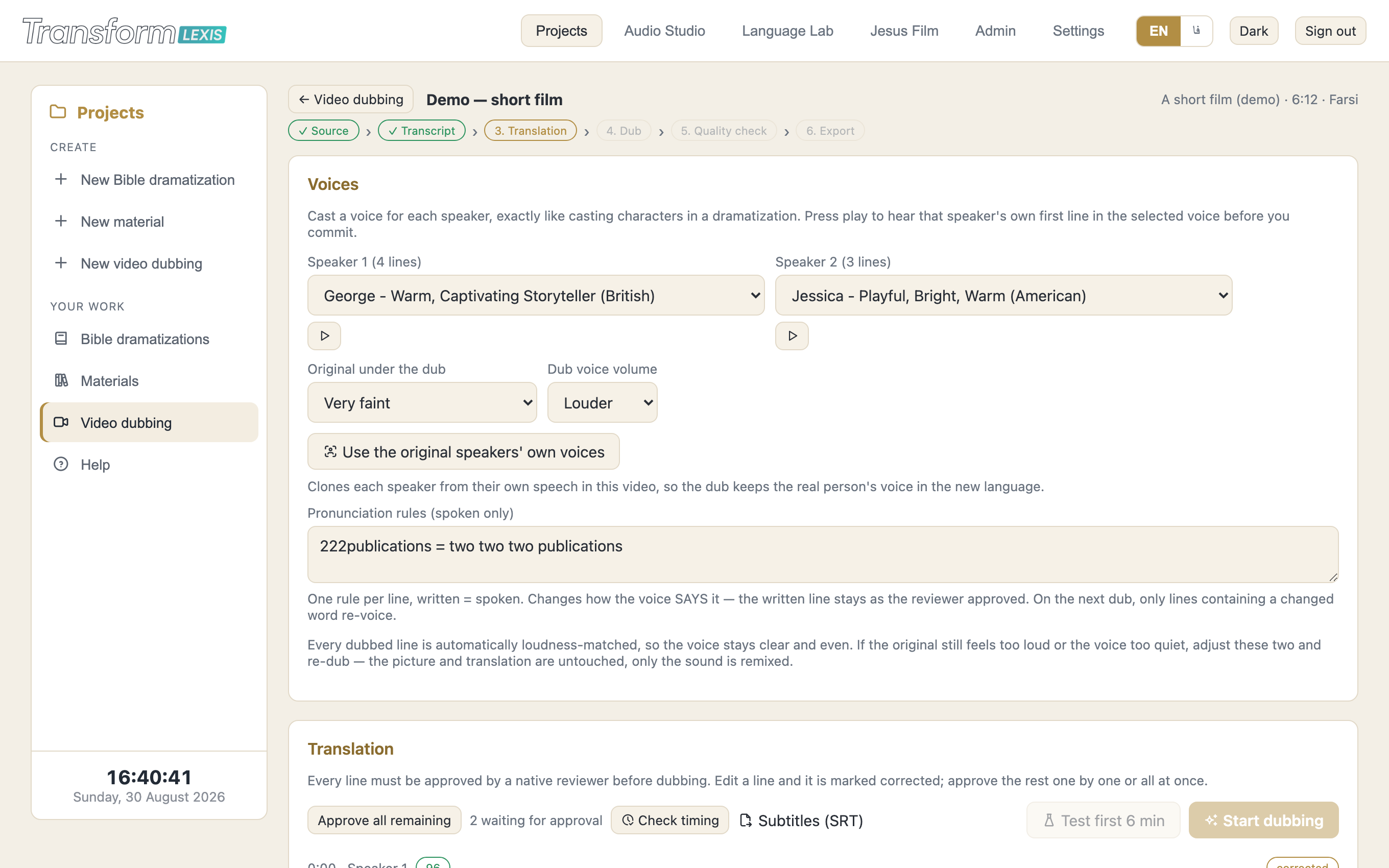
Two levels sit next to the cast. Original under the dub is how loud the source stays beneath the new voice; dub voice volume is the new voice itself. Every dubbed line is loudness-matched automatically, so these are for taste, not for rescue. Changing only the levels re-assembles without re-voicing anything, which is free and quick.
Use the original speakers' own voices clones each speaker from their own speech in this video, so the dub keeps the real person's voice in the new language. It needs enough clean speech per speaker, and it needs their consent — the button asks you to confirm that.
Pronunciation rules take one rule per line, written = spoken. They change only what the voice says, never what the reviewer approved on the page. On the next dub, only lines containing a changed word are re-voiced.
Dubbing, and checking it
Two ways to start. Test first 6 minutes gives you something judgeable in a fraction of the time and cost; the lines it voices are kept, so a later full dub does not redo them. Or dub the whole thing.
What happens then is worth knowing, because it is where dubbing usually goes wrong. Lines are never allowed to overlap: if a translation runs past its slot it spills into the following pause, and only if it would actually collide is it gently compressed. If lag builds up, a small catch-up brings it back. The result is bounded drift instead of a dub that slides further behind with every minute.
Afterwards a quality pass translates each dubbed line back and scores it, flags timing problems from the real measured fit, and marks anything worth a second look. Fix a line, and only that line is re-voiced.
If a long run fails partway, press Try again. Voicing is resumable: whatever was already spoken is kept, and it continues from where it stopped.
Exporting and subtitles
Exports come in four flavours: a full-quality master, 720p, 480p, and audio only. The picture is copied through untouched wherever possible, so you are not re-encoding a film to change its language.
Subtitles (SRT) exports the reviewed translation as a subtitle file. If the project was created from an SRT, the export is byte-identical to the original file with only the cue text swapped — numbering, timecodes, styling and line endings preserved — so it drops straight back into a partner's editing or lip-sync workflow without anyone reformatting anything by hand.
Want to try it in your language?
Ask for an account and you get these guides from the inside.
Request access